Operator context

Get insights in what's linked to an operator before disabling it

Case description

An organisation is a dynamic entity. People come and go, but they never leave without a trace. They've create tons of objects in the Adobe Campaign application and that might cause issues when you're at the point of disabling their profile. You can keep their profile active, but from a security perspective it's not the smartest thing to do. But disabling them isn't the smartest either.

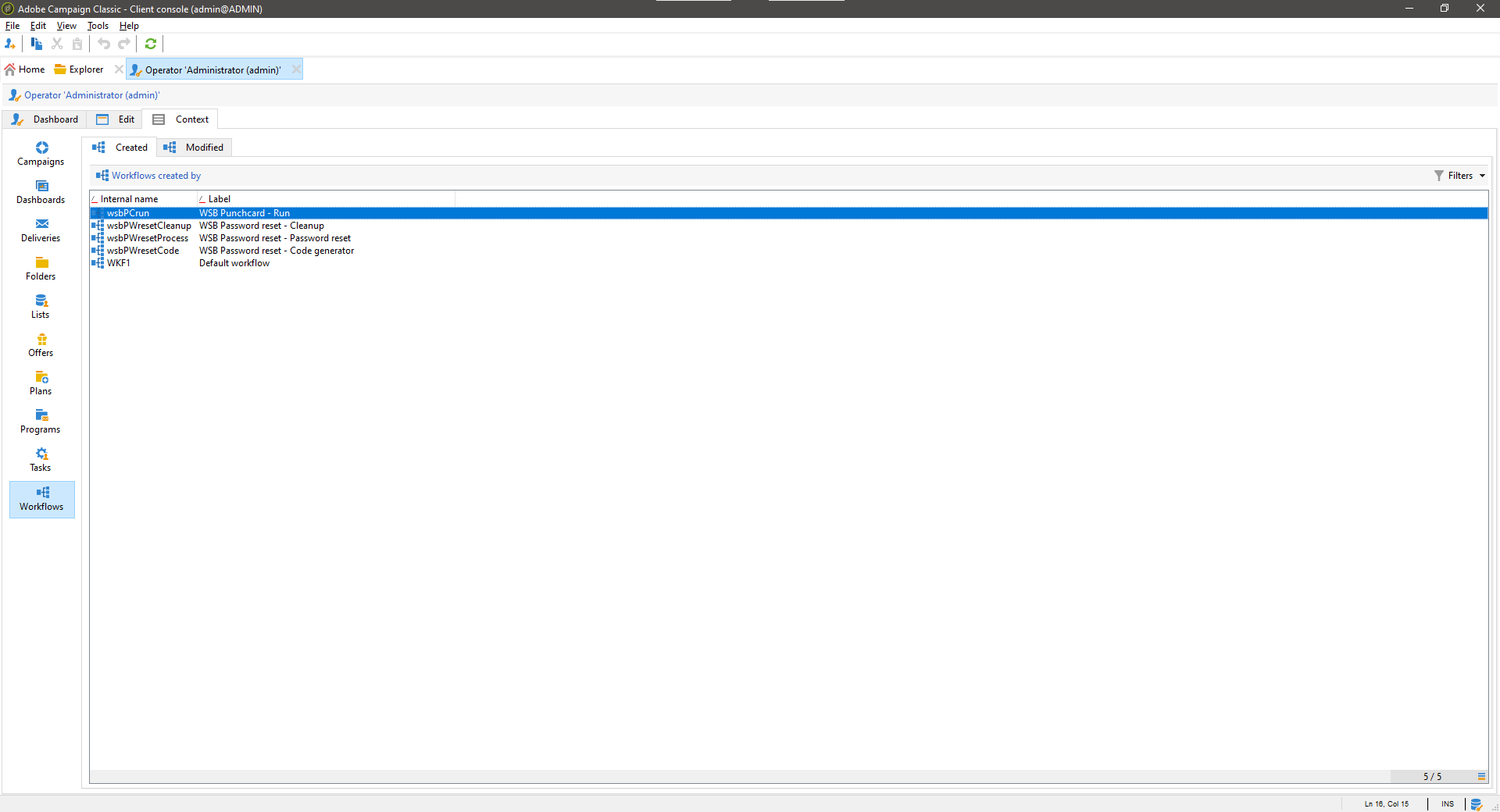
The operator context integrates with the operator form and will add a tab showing you all objects they the operator created or modified. This allows you to judge the potential impact of disabling the operator and taking the required actions to mitigate the issue of failing workflows due to a disabled operator profile. You can restart the workflows (s)he last modifed, reassign the offers to someone else in the campaign team, or check where other traces are present.

The context shows you nearly all out-of-the-box compenents like offers, workflows, deliveries, tasks ... and many more.

Let's have a look

The operator context is a form that you can reference from the operator input form. It'll be shown as a seperate tab on the operator form.

How it works?

Functional description

The operator context form is an input form that you can reference from the operator form. This reduces the risk of messing up the operator form. It relies on the created-by and modified-links that are natively present in the dataschemas. Based on which packages are installed, certain tabs might be shown or not, this to prevent errors.

Technical description

When you install the operator context package, the following objects will be created.

Input forms

wsb:operatorContext
This form contains all tabs and views.

Installation and usage

You can simply download the package using the link above and install it on your instance. Next you'll need to add the following line of code to the operator input form (cf. nms:operator) to show the tab. Implement as shown below. Once done, go to the operator folder and click one, the tab should be shown.

Sample text. Lorem ipsum dolor sit amet, consectetur adipiscing elit, sed do eiusmod tempor incididunt ut labore et dolore magna aliqua. Sit amet tellus cras adipiscing enim. Ut porttitor leo a diam sollicitudin. Turpis in eu mi bibendum neque egestas congue quisque egestas. Viverra adipiscing at in tellus integer. Blandit volutpat maecenas volutpat blandit aliquam etiam erat velit. Lectus sit amet est placerat in egestas.

The source code of this feature is available on Azure DevOps

Find out more

Usage

You can use it all for free, but you need to be aware of the following 

You are allowed.
  • to install the packages or implement the ideas on your own instance
  • to use and modify the features on your own instance
  • to promote this website to your clients
You are not allowed.
  • to redistribute the packages or ideas
  • to embed the concepts or packages in the software as native or add-on packages
  • to earn money based on these features
You agree.
  • that you are installing the packages / implementing the features at your own risk
  • that any damage to your instance is for your own account
You are aware.
  • that we use the "wsb" namespace for our features
  • that there's no active support, but feel free to drop a mail